



The best software for screen capture and recording
Easily grab screenshots or record your screen, then add annotations to communicate your message clearly.


Demonstrate a process


Explain a
concept


Report bugs or errors


Archive information
Easy to use, but full of advanced features
Don't let clumsy built-in tools hold you back. Snagit's comprehensive feature set makes it the top screen capture software for professionals.
Scrolling capture
Quickly capture images of anything and everything on your computer screen, even scrolling areas.
Simplify UI
Transform screenshots into simplified user interface (SUI) graphics in a single click.
Library
Say goodbye to the chaos and let Snagit keep your content effortlessly organized and synced across devices.
- Filter and sort by date, file type, and application
- Sync to Google Drive, OneDrive, and more
- Tag images and videos
Smart move
Snagit automatically recognizes elements in your screenshot, granting you the magical ability to rearrange or remove UI elements.
Text recognition
Magically edit the text within an image, screenshot, or scanned document. You can even adjust the font, text size, and color.
Capture anything, exactly how you want it
This is the capture window where you can effortlessly customize and save your capture settings.
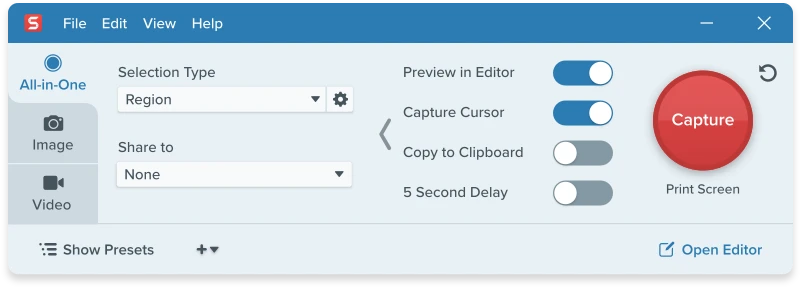


Image capture
Capture your full screen, a specific region, fixed image size, or scrolling area.


Video recording
Record video of all or part of your screen, plus your camera.


Audio recording
Record microphone and system audio.


Custom presets
Create custom presets and keyboard shortcuts for your go-to captures.
Unleash your creativity with the ultimate built-in editor
Effortlessly transform your captures into polished, professional-quality images with easy-to-use templates and mark-up tools.
Add effects like borders, filters, and capture info.
Get started quickly with professional templates.
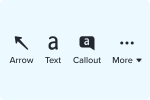
Add annotations like callouts, arrows, and more.
Get a link to your content or send directly to a specific app.
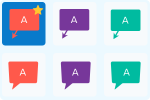
Use presets or create custom styles that fit your brand or unique needs.
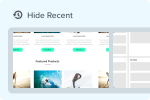
Quick access to your most recent captures.
The Snagit Library keeps your captures effortlessly organized.
Share anywhere
Snagit works wherever you do. Instantly generate a link to content or upload directly to the apps you use every day.


Microsoft Teams


Microsoft Powerpoint


Microsoft Word


Microsoft Excel


Microsoft Outlook


Google Drive

TechSmith Screencast


TechSmith Camtasia


TechSmith Knowmia


Box


Gmail


Dropbox


Slack


YouTube


File Explorer
"Snagit has saved me a ton of hours."
Iris Johnson | Manager of Training & Culture at LightEdge Solutions

Get Snagit Today
With thousands of amazing uses, Snagit is the only screen capture and recording software you'll ever need.
Free Trial
Free
No credit card required
Try Snagit screen capture for free.
Snagit
snagit-individual-yearly
Subscription and perpetual options for Snagit.
All licenses include access to Screencast.
Connect Bundle
$108.99
Billed Yearly
One non-transferable subscription to Snagit and a subscription to Screencast Pro.
FAQ
While there is no completely free version of Snagit, there is a fully-functional free trial. That means you can try the paid version, free for 15 days.
The Snagit individual subscription license is $39.00 billed annually. The Snagit perpetual license is $62.99 billed once and includes one year of Maintenance. The Snagit perpetual license is eligible for volume discounts starting at five licenses or more.
- BMP
- CUR
- GIF
- ICO
- JPG
- MHT
- PNG
- SNAG
- TIF
- RAS
- EMF
- EPS
- PSD
- TGA
- WFX
- WMF
- WPG
- MP4
Windows System Requirements
- Microsoft Windows 11, Windows 11 on ARM (22H2 or higher), Windows 10 (1903 or higher), or Windows Server 2016, or Windows Server 2019
- Windows N requires the Media Foundation Pack
- 64 bit Windows only
- Snagit Printer not available on Windows on ARM
- .NET 4.7.2 or later
- WebView2 Runtime (included with installer)
- Intel i3 CPU / AMD equivalent (Intel i5 CPU 6th gen / AMD equivalent or higher required for video capture)
- 4 GB of RAM
- 1.6 GB of hard-disk space for program installation
macOS System Requirements
- macOS Monterey (12), or later
- macOS Ventura (13) or later is required for:
- Video recording toolbars and controls to he hidden in final recordings
- Camera swap
Sharing your screen recordings with Snagit is both simple and versatile. In a single click, a link is automatically copied to your keyboard and ready to share with anyone. You can also directly upload your screen captures and recordings to popular apps like YouTube, Google Drive, Dropbox, and more.
You can install your license on up to two computers for a single user. For example, you can install on a desktop and a laptop or at home and at work.
If your computer crashes or you get a new machine, you can reinstall the version that you purchased, as long as you don’t have the program installed on more than two computers at a time.
Volume discounts are available starting at 5 licenses or more. The more licenses you buy, the lower the price.
A screen capture tool lets you take a picture (or video) of what you see on your screen.
There are a lot of built-in programs and free tools to capture your screen.
But, if you need to take a lot of screenshots and want more flexibility and robust tools, Snagit is the best screen capture software.
Yes, Snagit has customizable hotkeys for every type of caption!
For a Global Capture, use Print + Screen + C on Mac, and PrntScr for Windows. Or, customize the shortcuts to fit your needs best.
To start and stop screen recording, use Control + Shift + Space bar to start and stop on Mac, and use Shift + F9 on Windows.